Carvera Air Desktop CNC Machine Review 2026: The Ultimate Guide
Are you tired of those cheap desktop CNC machines that promise the world but deliver nothing but frustration? You know the ones.
They arrive in flimsy packaging, shake like they’re having a seizure when they run, and produce cuts that look like a toddler tried carving butter with a spoon.
Well, buckle up, because the Carvera Air Desktop CNC Machine is about to change everything you thought you knew about compact milling machines.
Key Takeaways
- Professional-grade precision in a desktop package – The Carvera Air delivers industrial accuracy with its closed-loop stepper motors and 0.0002-inch resolution, making it perfect for detailed work on wood, plastic, aluminum, and brass
- Fully enclosed design keeps your space clean – Unlike open-frame machines that turn your workshop into a sawdust disaster zone, the Air’s enclosure contains mess and dramatically reduces noise levels
- Quick tool changing system saves hours – The integrated tool changer lets you swap bits without manual intervention, making complex multi-tool projects actually practical
- Optional 4th axis and laser module expand capabilities – Transform the machine into a rotary miller for cylindrical objects or add laser engraving for even more creative possibilities
- User-friendly software bridges the learning curve – Makera CAM software walks you through setup, though expect to invest time learning the ropes if you’re new to CNC machining
- Investment-level pricing at $2,499 base model – This isn’t a budget machine, but the build quality and capabilities justify the cost for serious makers

What Makes the Carvera Air Different From Budget CNC Machines
Let’s get one thing straight. The Carvera Air isn’t playing in the same sandbox as those $200 CNC machines flooding the market. You know the type.
They promise precision but deliver disappointment. The Carvera Air takes a completely different approach with its die-cast aluminum frame that provides the rigidity needed for actual metalworking.
The machine measures 19.7 inches wide by 17.7 inches deep and stands 17.7 inches tall. That’s compact enough to fit on a standard desk without dominating your entire workspace. But don’t let the size fool you.
Inside that enclosure lives a 200-watt spindle capable of spinning up to 13,000 RPM with closed-loop control. This means the machine constantly monitors and adjusts speed for consistent performance.
Understanding the Carvera Air Build Quality and Construction
The moment you unbox the Carvera Air (and yes, get help lifting that 66-pound beast), you’ll notice the attention to detail.
The gantry system uses precision ball screws and linear rails instead of the wobbly aluminum extrusion frames common in cheaper machines. This rigid construction is what allows the Air to tackle aluminum and brass without flexing like a noodle.
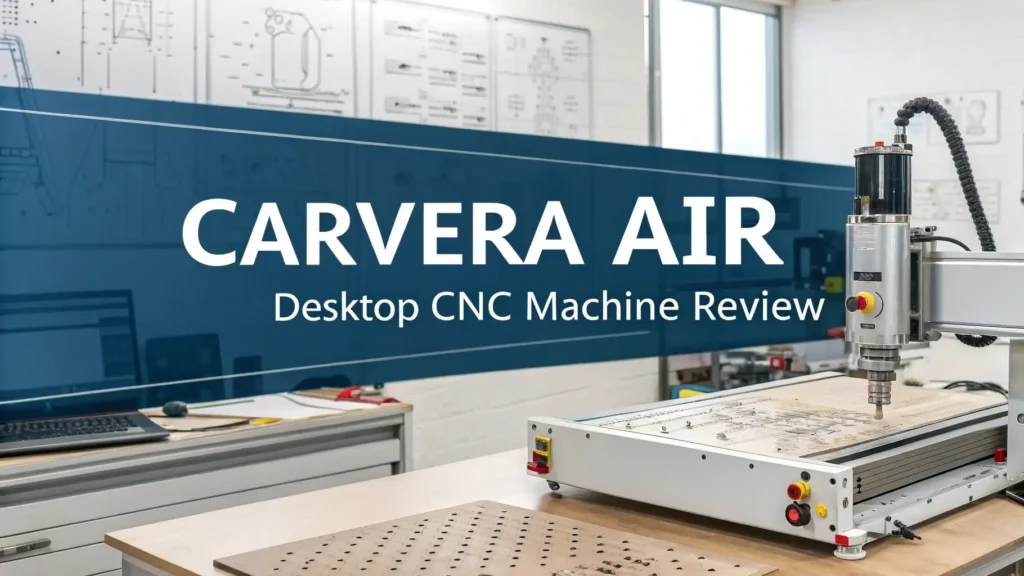
The transparent front door swings upward to reveal the work area. Inside, you’ll find a bed covered with threaded mounting holes for securing workpieces with the included clamps and fixtures.
The spindle moves smoothly across all three axes with impressive precision. With a motor resolution of 0.0002 inches and spindle runout of less than 0.0003 inches, this machine can produce parts with seriously tight tolerances.
Top 3 Alternatives for Carvera Air


Setting Up Your Carvera Air for the First Time
Here’s the good news. The Carvera Air arrives mostly assembled. You won’t spend days piecing together a mechanical puzzle like with some other machines.
After placing it on a sturdy desk (make sure your surface can handle 66 pounds), setup involves connecting the power supply, plugging in the USB cable, and installing Carvera Studio software on your computer.
One critical step you must not skip: Check the internal voltage switch. For United States users, this needs to be set to 115V. Getting this wrong could damage your machine, so double-check before powering up.
Materials the Carvera Air Can Actually Cut
This is where things get interesting. The Carvera Air handles a surprisingly wide range of materials for a desktop machine. Let’s break down what works well and what doesn’t.
Wood and wood products are the Air’s bread and butter. Hardwoods, softwoods, MDF, and plywood all cut beautifully with clean edges and smooth surfaces.
The machine produces detailed engravings and can handle deep pockets without breaking a sweat. For woodworkers, this machine opens up possibilities that would normally require expensive shop equipment.
Plastics of all types work great. Acrylic cuts with crystal-clear edges perfect for light-up displays. ABS, PVC, HDPE, and polycarbonate all machine well with the right speeds and feeds. Foam cuts so easily you’ll wonder why you ever used a hot wire cutter.
Aluminum is where the Carvera Air shows its true capabilities. Yes, it can mill aluminum. But here’s the reality check. You need to go slow and take light cuts.
The surface finish won’t match a full-size industrial mill, and production times will be longer than you’d like. For occasional aluminum work or prototyping, it’s absolutely capable. For production runs, you might want something more powerful.
The 4th Axis Rotary Module Explained

The optional 4th axis module transforms the Carvera Air from a 3-axis mill into a true 4-axis CNC machine. This isn’t just a marketing gimmick. The rotary capability opens up completely new project possibilities.
Installation is straightforward. Two alignment pins locate the module precisely on the work bed, then six screws lock it down. A single cable connects to a port inside the rear of the enclosure. The software automatically recognizes when the 4th axis is installed and adjusts accordingly.
The rotary module grips cylindrical workpieces between two chucks, similar to a lathe. You can machine items up to 3.6 inches in diameter and 7.9 inches long. This allows you to create complex relief sculptures, detailed engravings on round objects, or machine multiple sides of a part without manual repositioning.
The Carvera Air provides simultaneous 4-axis machining, not just indexed positioning. This means the rotary axis can move smoothly while the other axes are cutting, enabling true 3D contoured surfaces on cylindrical parts. The demo Nefertiti bust included with the machine perfectly demonstrates this capability, producing smooth curves and fine details that would be impossible on a 3-axis machine.
Laser Engraving Module Capabilities and Limitations
The optional laser module adds yet another dimension to the Carvera Air’s versatility. The 5-watt 445nm semiconductor diode laser installs in the spindle mount just like any other tool. The software recognizes it automatically and switches to laser mode.
Laser engraving works on wood, plastic, fabric, leather, and cardboard. You can create detailed graphics, personalize items, or mark parts with serial numbers and logos. The laser produces clean, permanent marks without the noise and mess of mechanical milling.
However, this isn’t a laser cutter in the traditional sense. The 5-watt power rating means it can engrave and do light cutting on thin materials, but it won’t slice through thick acrylic or plywood like higher-powered CO2 lasers. Think of it as an engraving tool rather than a cutting tool.
The laser requires airflow to cool the material being worked. Makera doesn’t include an air pump, so you’ll need to source your own. This seems like an oversight at this price point. A small aquarium pump works fine, but it’s one more thing to figure out.
Dust Collection and Noise Management
One of the Carvera Air’s biggest advantages is its fully enclosed design. This isn’t just about aesthetics. The enclosure serves multiple practical purposes that make desktop CNC operation actually feasible in a home or apartment.
The integrated dust shoe connects to a flexible hose and works to capture chips and dust right at the cutting point. On the back of the machine, a dust extraction port lets you connect a shop vacuum. This dual-stage collection system is surprisingly effective. When everything is set up properly, very little debris escapes into your workspace.
You’ll probably need an adapter to connect your shop vac to the extraction port. The machine uses a specific size that doesn’t match standard vacuum hoses. A quick 3D printed adapter solves this problem, or you can order the proper adapter from Makera.
Carvera Studio Software and Learning Curve
The Carvera Air uses Makera CAM software (also called Carvera Studio) for job setup and control. This proprietary software handles everything from file import to tool path generation to machine control. It’s designed specifically for the Carvera machines, which means tight integration but also a learning curve if you’re used to other CAM programs.
The software walks you through each step: importing your design file, selecting material type, choosing cutting tools, generating tool paths, and sending the job to the machine. For beginners, this guided approach is helpful. For experienced users, it can feel restrictive compared to full-featured CAM packages.
Compatibility with standard CAD/CAM software is good. You can design in Fusion 360, SolidWorks, AutoCAD, or other programs, then import files into Carvera Studio. The software supports common file formats including STL, DXF, and G-code. You can also use VCarve Pro or Aspire to generate tool paths, then import them into Carvera Studio for final setup.
The user interface runs on Windows, macOS, Linux, iOS, and Android. WiFi connectivity means you can monitor and control jobs from your phone or tablet. This is genuinely useful when you’re running a long job and want to check progress without hovering over the machine.
Real-World Performance Testing Results
Testing the Carvera Air with the included demo projects revealed both its strengths and a few quirks. The LED light demo involved cutting acrylic, plastic, and aluminum to create a small light housing. The Air handled all three materials in one continuous job, automatically changing tools as needed.
Cutting performance was impressive. The machine produced clean edges and precise pockets in the aluminum without excessive chatter or tool deflection. The acrylic engraving showed fine detail with smooth, clear surfaces. Assembly of the final LED display confirmed that all parts fit together properly with tight tolerances.
The 4th axis Nefertiti bust demonstrated the machine’s capability for complex 3D work. Watching the bust take shape from a wooden cylinder was genuinely impressive.
The spindle carved smooth curves and captured fine facial details that would be impossible with 3-axis milling alone. Surface finish straight off the machine was good enough that minimal sanding was needed.
Working With Aluminum on the Carvera Air
Since aluminum capability is a major selling point, let’s dig deeper into what’s actually possible. The Carvera Air can definitely mill aluminum and other non-ferrous metals. But understanding the limitations prevents frustration and broken tools.
The 200-watt spindle and rigid construction provide enough power and stability for aluminum work. However, you need to use appropriate cutting speeds and conservative depth of cut. Taking aggressive cuts will overload the spindle, deflect the tool, and produce poor results. Patience is essential.
Tool selection matters immensely for aluminum. Use proper end mills designed for non-ferrous metals. Cheap bits will dull quickly and produce terrible surface finishes.
Single-flute or two-flute cutters work better than four-flute in this size machine. Coating matters too. Uncoated HSS works okay, but ZrN coated bits last longer and cut cleaner.
Coolant or cutting fluid helps significantly with aluminum. The machine doesn’t have flood coolant capability, but you can manually apply cutting fluid to the work area. Spray mist systems work well too. At minimum, use an air blast to clear chips. Aluminum tends to weld to cutters if chips aren’t evacuated properly.
Maintenance and Tool Management
Keeping the Carvera Air running smoothly requires regular but straightforward maintenance. The enclosed design actually helps here by containing debris and protecting components from environmental contamination.
Clean the work area after each job. Chip buildup can interfere with the dust shoe and potentially jam moving parts. The interior wipes clean easily with a vacuum and damp cloth. The dust collection system handles most material removal, but some manual cleanup is always needed.
Linear rails and ball screws need occasional lubrication to maintain smooth motion. Makera provides specific recommendations in the user manual. Light machine oil applied sparingly to the rails keeps everything moving freely. Don’t over-lubricate, as excess oil attracts dust and forms grinding paste.
Tool management becomes important as your collection grows. The machine doesn’t have an automatic tool changer like its bigger sibling, the standard Carvera. Instead, you manually change tools when prompted by the software. Having your bits organized and easily accessible speeds up this process significantly.
Price Analysis and Value Proposition
Let’s talk money. The Carvera Air starts at $2,499 for the base model. Add the 4th axis and laser module, and you’re looking at $2,997 for the complete bundle. That’s not cheap. In fact, it’s significantly more expensive than many desktop CNC machines.
So what are you actually paying for? First, build quality that enables real machining work. The die-cast frame, precision rails, and closed-loop motors aren’t cheap components. Cheaper machines use aluminum extrusion and open-loop steppers because they cost less, not because they work better.
Second, the fully enclosed design with integrated features like dust collection, WiFi connectivity, automatic probing, and quick tool changing. Each of these features adds cost but also adds significant value if you’ll actually use them.
Third, support and documentation from a company that understands the hobbyist CNC market. Makera provides extensive video tutorials, active community forums, and responsive customer service. When something goes wrong (like the laser module in the review unit), they handle it professionally.
Who Should Buy the Carvera Air
The Carvera Air makes sense for specific types of users. Let’s get specific about who benefits most from this machine.
Serious hobbyists and makers who have outgrown basic CNC machines but lack space for full-size equipment. If you’re tired of flexible gantries and inconsistent results, the Air delivers a major capability upgrade in a desktop footprint.
Prototype developers and inventors who need to quickly produce custom parts. The ability to work with wood, plastic, and aluminum in one machine streamlines the development process. Add the 4th axis and laser for even more flexibility.
Small business owners making low-volume custom products. Personalized items, small production runs, and custom jigs all work well on the Air. Just understand that this isn’t a production machine for hundreds of identical parts.
Electronics enthusiasts who want to make custom enclosures and PCBs. The machine handles FR4 circuit board material beautifully, and the precision is more than adequate for component mounting.
Common Issues and Troubleshooting Tips
Even well-designed machines have quirks. Here are some common issues and solutions based on user experiences.
WiFi connectivity problems happen occasionally. If the machine won’t connect to your network, try moving closer to the router, checking for 2.4GHz vs 5GHz band compatibility, or using the USB connection instead. The USB connection is actually more reliable for critical jobs anyway.
Tool chatter during aluminum cuts usually indicates speeds and feeds need adjustment. Reduce cutting depth, increase spindle speed slightly, or slow down feed rate. Also check that your workpiece is rigidly clamped without any flex.
Inconsistent surface finish often traces back to dull tools or improper tool selection. Bits wear faster in aluminum than wood. What worked for 10 projects might need replacement by project 11. Keep spare bits on hand.
Dust collection not working effectively can result from a clogged hose, improper vacuum connection, or dust shoe not positioned correctly. Check the entire air path and ensure good suction at the shoe.
Probe failures during setup usually mean dirty contact points or improper grounding. Clean the probe tip and ensure your workpiece makes good electrical contact with the bed ground.
Software crashes or freezes occasionally happen, especially on older computers. Make sure you’re running the latest software version, close unnecessary background programs, and consider upgrading your computer if problems persist.
Frequently Asked Questions
Can the Carvera Air really cut aluminum effectively for hobby projects?
Yes, the Carvera Air can successfully mill aluminum for hobby projects and prototyping work. The rigid die-cast frame and 200-watt spindle provide enough power and stability for non-ferrous metals. However, you need to use conservative cutting parameters, appropriate end mills, and take light passes. Surface finish won’t match industrial machines, but results are perfectly acceptable for functional parts, jigs, and prototypes.
How difficult is the Carvera Air to learn for someone new to CNC machining?
The learning curve is significant if you’re completely new to CNC. The Makera CAM software provides helpful step-by-step guidance, and included demo projects teach fundamental concepts. However, understanding feeds and speeds, tool selection, work holding, and coordinate systems requires time investment. Budget several weeks of practice to become comfortable with basic operations.
Is the 4th axis rotary module worth the extra cost?
The 4th axis significantly expands project possibilities if you plan to work with cylindrical objects or want to create complex relief carvings. It enables true simultaneous 4-axis machining, not just indexed positioning, allowing smooth contoured surfaces on round parts. For users focused exclusively on flat work, the standard 3-axis capability may be sufficient.
What kind of maintenance does the Carvera Air require?
Maintenance requirements are straightforward but important. Clean the work area after each project to prevent chip buildup. Periodically lubricate the linear rails and ball screws with light machine oil according to Makera’s recommendations. Check collets for wear and replace if they don’t grip bits securely. Monitor spindle runout to catch bearing problems early. Check and clean the dust collection system regularly.
Can I use the Carvera Air in an apartment without disturbing neighbors?
The enclosed design significantly reduces noise compared to open-frame CNC machines. The Carvera Air itself produces manageable sound levels during operation, similar to a loud computer fan. You can run it during reasonable hours without excessive noise complaints. However, the shop vacuum connected for dust collection makes considerably more noise than the machine itself.
Does the Carvera Air require three-phase power or special electrical setup?
No special electrical requirements are needed. The Carvera Air runs on standard household power (100-120 VAC or 200-240 VAC at 50/60 Hz). The most important setup step is ensuring the internal voltage switch matches your region. For United States users, confirm the switch is set to 115V before first power-up. Beyond that, simply plug into a standard wall outlet.
How does the Carvera Air compare to the original Carvera machine?
The original Carvera costs around $5,499 and includes an automatic tool changer, larger work area, and linear rails throughout. The Air, at $2,499, uses hardened rods instead of full linear rails, omits the automatic tool changer (requiring manual tool changes), and has a smaller working envelope. However, the Air still uses quality components including a die-cast frame, closed-loop motors, and precision ball screws. For most hobbyists, the Air provides excellent capability at significantly lower cost.